

Budgets
Budgets help you set spending limits for different categories and track how well you’re sticking to them throughout the month.How Budgets Work
When you create a budget, you assign a spending limit to a category. As you spend money in that category, Sure tracks your progress and shows you:- Amount spent so far this month
- Amount remaining in your budget
- Status indicators showing if you’re on track, near your limit, or over budget
Planning ahead
You can create budgets for future months, up to 2 years in advance. This lets you plan your spending ahead of time and set category limits before the month begins. Navigate forward using the month selector to set up upcoming budgets. Month names in the picker are displayed in your account’s configured language.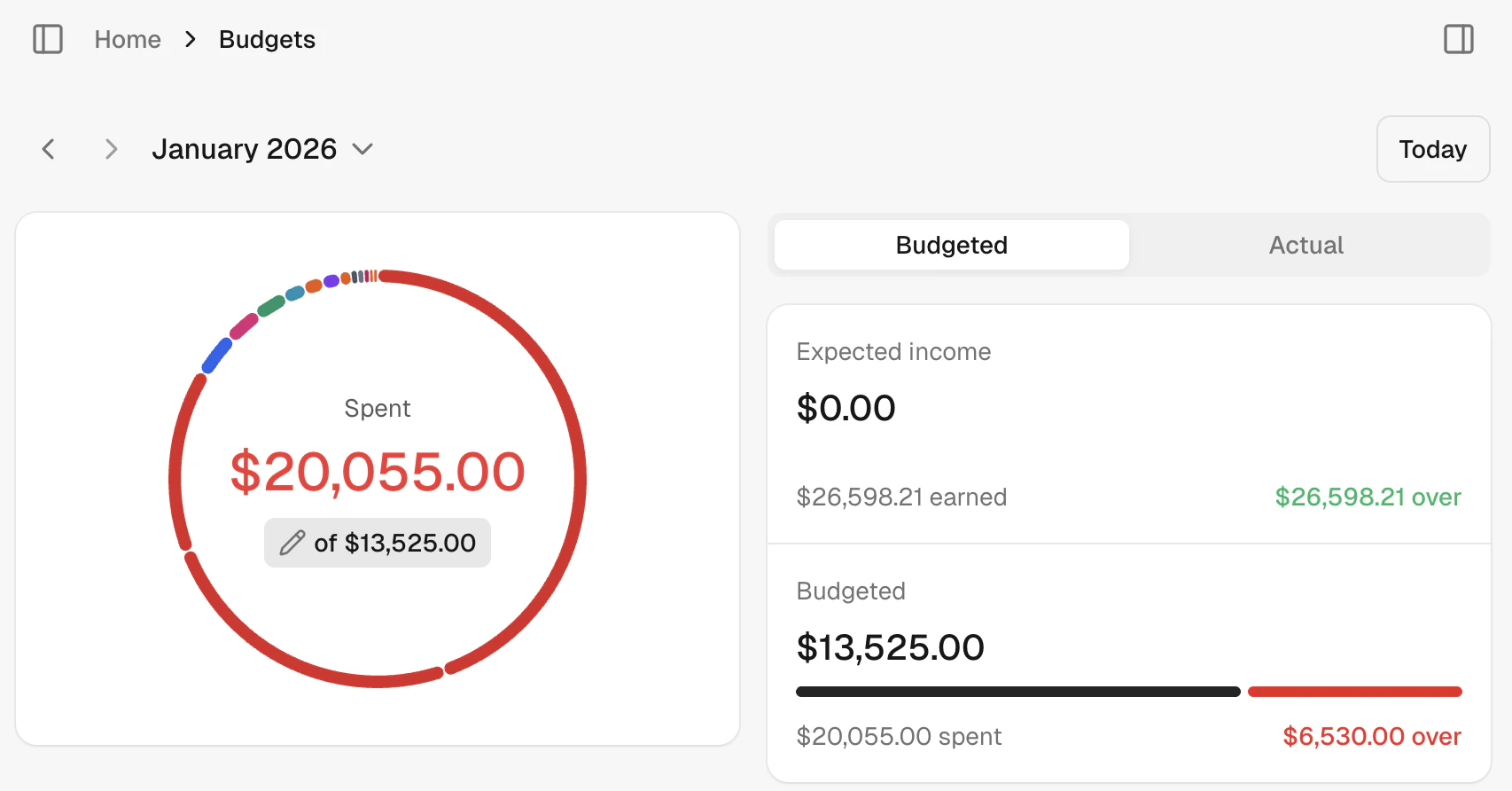
Personal budgets
Personal budgets are a preview feature. Enable them in Settings → Family to try them out.
Enabling personal budgets
A family admin can turn on personal budgets in Settings → Family. Once enabled, each member’s budget is tracked separately and their spending only counts against their own budget, not the household total.Household and personal budgets together
You can run both a household budget and personal budgets at the same time. The household budget covers shared family expenses, while each member’s personal budget covers their individual spending. To opt out of the household budget and use personal budgets only, disable Household budget in Settings → Family.Budget ownership switcher
On the budget page and the Plan hub card, a switcher lets you view:- Household — the shared family budget
- Mine — your personal budget
- Shared with me — personal budgets another member has shared with you
Sharing a personal budget
You can grant another family member access to your personal budget:- Read-only — they can view your budget but not edit it
- Read-write — they can view and edit your budget
Personal budget isolation
Each member’s personal budget is fully isolated:- Actual spending reflects only the budget owner’s own accounts
- A new period’s budget is seeded from that member’s previous period, not another member’s
- Deleting a family member also removes their personal budgets
Setting Up Category Budgets
Each category can have its own budget. For example, you might set:- Food & Dining: $500/month
- Entertainment: $200/month
- Transportation: $300/month
Budget rollover
By default, a category’s budget resets to zero at the start of each month. Rollover lets you carry any unspent balance forward so it accumulates over time — useful for irregular expenses like an annual insurance payment, a holiday fund, or car servicing.Enabling rollover for a category
Open the budget and edit any category. Toggle Rollover on to enable it. Once enabled, any surplus left at the end of the month carries into the next month’s envelope for that category. The setting persists: you don’t have to re-enable it each month. Turning it off for a specific month stops the carry in both directions for that month — the category neither receives a carry from the previous month nor sends one to the next.How the carry is calculated
What rollover affects
The top-of-page budget totals (
budgeted_spending, allocated_spending, available_to_allocate) are not affected by the carry.
Rollover and personal budgets
Each budget owner’s rollover chain is independent. A household budget’s carry is shared across all family members and is not influenced by who views the page. A personal budget’s carry follows only that member’s own accounts.Currency changes
If a category’s currency changes, the rollover chain stops at the point of the change. The carry will not cross a currency boundary.Subcategories and Shared Budgets
You can organize your spending further with subcategories. For example, “Food & Dining” might include:- Coffee & Takeout
- Groceries
- Restaurants
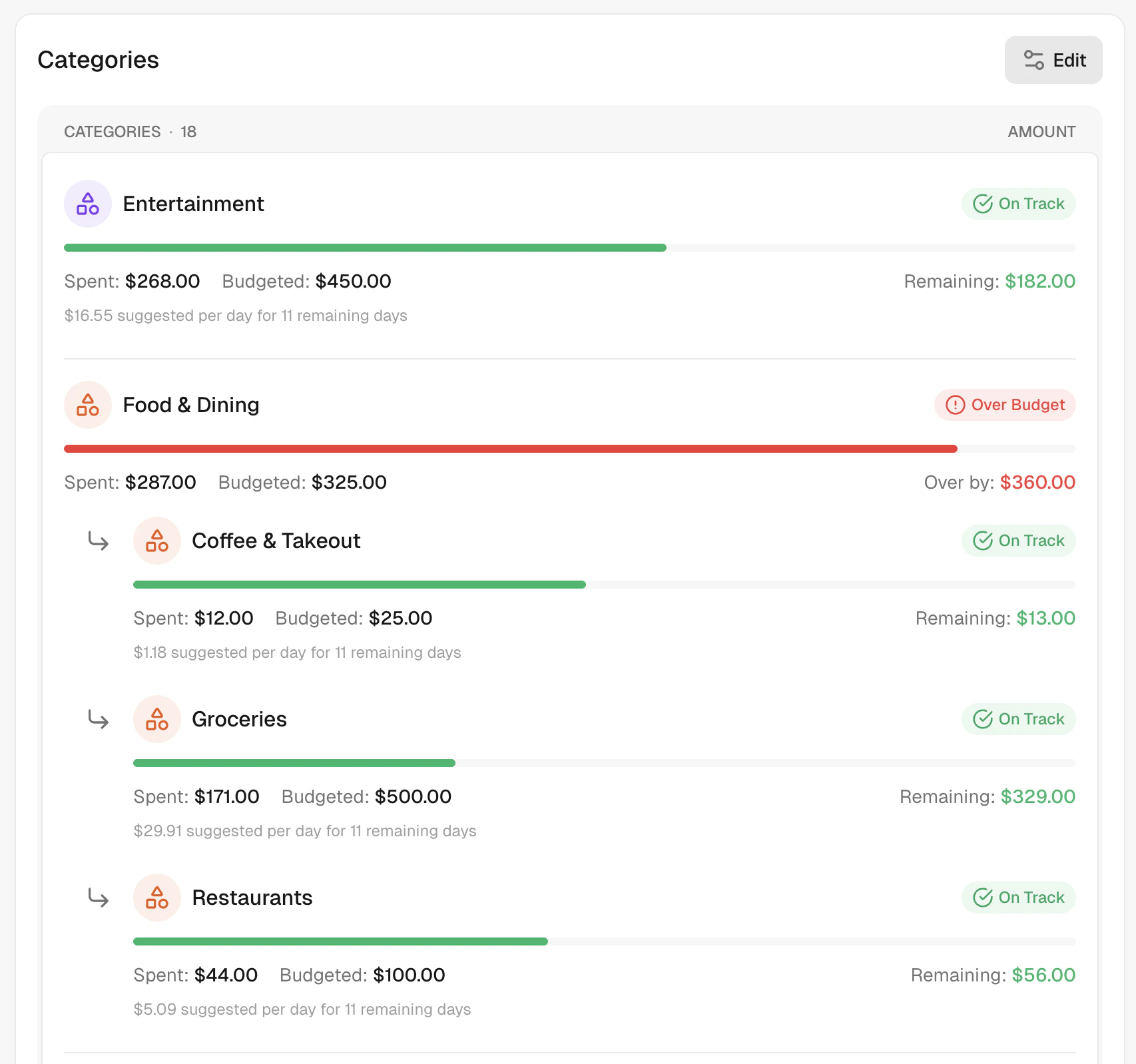
Individual budgets
Give each subcategory its own limit. This works well when you want strict control over specific types of spending.Shared budgets
Leave a subcategory’s budget empty to share the parent category’s budget. This is great when you want flexibility across related expenses. Example: Set “Food & Dining” to $500, but leave the subcategories without individual limits. Now all your food spending draws from the same $500 pool, whether you’re buying groceries or eating out. When a subcategory shares its parent’s budget, you’ll see a “(shared)” label next to the budget amount, making it clear which subcategories are drawing from the shared pool.Mixed approach
Combine both methods. Set a fixed budget for some subcategories while others share the remaining amount. Example:- Food & Dining: $500 total
- Restaurants: $100 (fixed limit)
- Groceries and Coffee share the remaining $400
- Restaurants has $100 remaining ($100 budget - $0 spent)
- Groceries and Coffee share $350 remaining. The shared pool is the parent’s allocation ($500) minus ring-fenced siblings’ allocations ($100) = $400, minus shared spending ($50) = $350.
- The parent Food & Dining shows the total remaining across all subcategories, including any rollover carried by ring-fenced subcategories
Parent auto-aggregation
When you edit a subcategory’s budget, the parent category’s budget automatically updates to reflect the change. You don’t need to manually adjust the parent — Sure keeps it in sync for you. How it works:- When you increase a subcategory’s budget, the parent’s budget increases by the same amount.
- When you decrease a subcategory’s budget, the parent’s budget decreases accordingly.
- If the parent had extra budget beyond the sum of its subcategories (a “reserve”), that reserve is preserved during the update.
- The parent’s budget never drops below the combined total of its subcategories.
- Food & Dining starts at $500 with Restaurants at $100 and Groceries at $150 ($250 reserve in the shared pool)
- You increase Groceries from $150 to $200
- Food & Dining automatically updates to $550, preserving the $250 reserve
Bills and budget reservations
On initialized category cards showing budget details, Sure displays a reservation when qualifying unpaid bill occurrences have a positive remaining amount within the budget period. The card displays a line like “$X reserved by bills”. This figure is read-only information — it does not reduce the available amount shown for the category. It tells you how much of your remaining budget is already spoken for, so you can plan accordingly rather than spending money that is already committed. If a bill is in a foreign currency and no exchange rate is available, Sure cannot convert it to your budget currency and will instead show a warning like “1 bill is not reserved, no exchange rate available”. The unconvertible bill is counted and reported rather than silently excluded, so you always know when a reservation could not be calculated.What counts as a reservation
Sure reserves the remaining unpaid amounts of open occurrences that are:- Part of an active, categorized expense series
- From a series with no destination account
- Due within the budget period
Status Indicators
Sure uses color-coded badges to show your budget status at a glance:- On Track (green) - You’re within budget and pacing well
- Near Limit (yellow) - Getting close to your limit
- Over Budget (red) - You’ve exceeded your budget
Tax-advantaged accounts and budgets
Sure automatically excludes activity from tax-advantaged investment accounts when calculating budget spending. This ensures your budgets accurately reflect your day-to-day spending without being skewed by investment contributions or withdrawals. Excluded account types:- 401(k) accounts
- IRA accounts (Traditional and Roth)
- 403(b) accounts
- Other tax-advantaged retirement accounts
Creating a budget without category allocations
You can save a budget that only sets an overall monthly amount without splitting it across categories. The budget setup wizard no longer requires any category allocation before you can confirm. Any unallocated amount is treated as uncategorized spending and appears in the donut chart on the budget page. You can always add category allocations later by editing the budget.Cash on hand panel
This panel is a preview feature. Enable preview features in Settings → Preferences to see it.
budgeted_spending, expected_income). The Cash on hand panel answers “what do I actually have?” and reads live account balances.
The panel shows three figures. Really free is the panel’s primary answer and appears highlighted at the bottom:
The earmarked amount only covers cash accounts, not investment accounts. Goals can be backed by brokerage or investment accounts, but those balances are never counted in “available” and are therefore not subtracted from it.
In a multi-currency household, each account balance is converted to the budget currency before the figures are summed.
A link to the Goals page appears in the panel so you can inspect what is earmarked and why.
Tips for Effective Budgeting
- Start simple - Begin with just a few major categories before adding detail
- Review monthly - Check your budgets at the end of each month and adjust as needed
- Use shared budgets for categories where you want flexibility between subcategories
- Use individual limits when you need strict control over specific spending